
Lesson 1 — Demo 1: AI-Powered Customer Feedback Analysis & Follow-Up
Unit 2 | Lesson 1 of 2
By the end of this lesson, you will be able to:
- Identify the key components of a no-code AI-enabled workflow in practice
- Explain how GenAI performs sentiment analysis within a structured automation pipeline
- Describe where and why a human-in-the-loop approval gate is built into this workflow
- Begin connecting what you observe to processes in your own organisation
Before you watch
This is the first of four workflow demonstrations in the Demo Lab. Before the video starts, take 60 seconds to do two things.
First, open your Unit 2 Workbook to the Activity 1 Observation Sheet for Demo 1. Have it ready — you will be filling it in as you watch.
Second, think briefly about your own role: does your team or organisation collect any kind of customer or stakeholder feedback? Keep that in the back of your mind as you watch.
What this demo is about
The business problem: A customer service or operations team regularly accumulates customer feedback — from surveys, support tickets, or post-interaction forms. The volume is too high to read manually in full. Dissatisfied customers risk going unaddressed. The team needs to identify who is unhappy, understand why, and follow up personally — without that process taking hours of manual triage every week.
The platform: Microsoft Power Automate with a GenAI connector (such as OpenAI or Azure OpenAI).
The type of workflow: Low / no-code. No programming required to configure or run this. It is built by connecting pre-built modules in a visual drag-and-drop interface.
How the workflow runs — step by step
Before or after the video, this walkthrough gives you the full picture of what is happening at each stage.
Step 0 — Sentiment analysis (in Excel, before the flow runs)
📖 What is sentiment analysis? Sentiment analysis is the process of reading a piece of text and determining the emotional tone behind it — typically classifying it as positive or negative. It is one of the most established applications of AI in business: rather than a human reading every comment, the model reads them at scale and returns a structured judgement on each one.
Before the Power Automate flow is triggered, an AI model embedded directly in Excel has already processed the feedback. Each row in the spreadsheet has a sentiment column pre-populated with a classification — Positive or Negative — based on the feedback text. By the time the flow runs, the analysis is done. The flow reads the label — it does not perform any analysis itself.
This is an important design choice: separating the analysis from the automation keeps each part simple, transparent, and easy to troubleshoot independently.
Step 1 — Trigger The flow is started manually by a team member when a new batch of feedback is ready to process. In a production setup this could be automated — for example, triggered when a new file is uploaded to a SharePoint folder — but a manual trigger keeps the process explicit and easy to control.
Step 2 — List rows from the table The flow reads every row from the Excel feedback table, including the pre-computed sentiment column. This is the dataset that all subsequent steps act on.
Step 3 — Apply to Each Power Automate loops through every row one by one, running the same set of actions on each. Everything from this point — the condition check, the email drafting, the approval, and the send — repeats for every row until the whole batch is complete. This is what makes the flow scalable: it works the same whether you have ten responses or ten thousand.
Step 4 — Sentiment condition For each row, the flow checks the sentiment column. If the value is Negative, the flow proceeds to draft a follow-up email. If it is anything else, the flow does nothing for that row and moves on. This is a simple yes/no branch — the hard work of classification was already done in Step 0.
Step 5 — Draft follow-up email
📖 What is AI Builder? AI Builder is Microsoft's no-code AI capability built into the Power Platform. It allows you to use AI models — including large language models — directly inside Power Automate flows without writing any code. The "Run a prompt" action used here sends text to an AI model and returns a generated response.
⚠️ Licensing note AI Builder runs on Copilot credits, which are included in certain Microsoft 365 and Power Platform licences. Check with your IT or licensing team before building this step to confirm your organisation has access.
For each row that passed the condition, the flow calls AI Builder with a prompt that includes the customer's name and their feedback text. The model drafts a personalised follow-up email appropriate to that specific complaint. Every draft is generated fresh for each customer — this is not a template.
Step 6 — Human review gate This is one of the most important steps in the workflow. The drafted email is not sent automatically. The flow pauses and routes an approval request to a designated team member, who receives the draft in their inbox or in the Power Automate approvals centre. They read the draft, check the tone and accuracy, and make a decision: approve or reject. No customer communication leaves the organisation without a human having reviewed it.
Step 7 — Send the email If the reviewer approved, the flow sends the email to the customer via Gmail or Outlook. If the reviewer rejected, the flow stops for that row and nothing is sent. The loop then moves on to the next row and the whole process repeats.
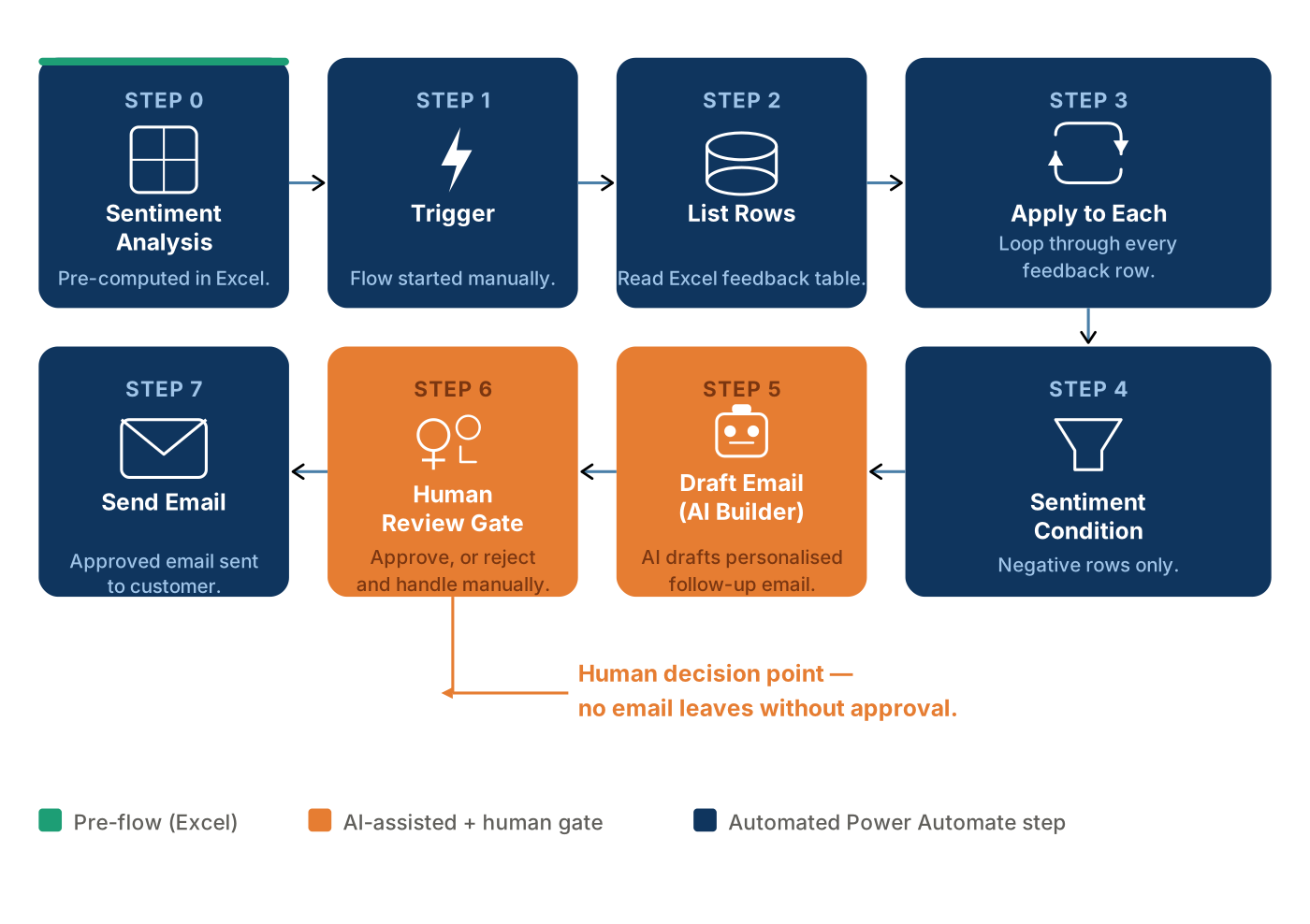

Sentiment analysis was done before the flow ran — and that was a deliberate choice. The Power Automate flow does not call an AI model to classify sentiment. That work was done separately in Excel using an embedded AI model. Separating classification from automation keeps each part simpler, easier to test, and easier to swap out if you want to change the model or approach later.
The human-in-the-loop gate is a design choice, not an afterthought. The workflow could technically be configured to send emails automatically without human review. The decision not to do that is a deliberate design decision — one that reflects good practitioner judgement. Customer communications carry reputational risk. A hallucinated detail, a misjudged tone, or a misidentified issue could damage a relationship. The human review step exists to catch those cases.
The condition in Step 4 only works because the data is already structured. The flow checks a column value — it does not interpret free text. This is a key concept in workflow design: AI is used upstream to produce structured, consistent output, and the automation downstream relies on that structure. Well-designed prompts and clean data make the rest of the flow reliable.
The business value is measurable. You can calculate the time saved per week compared to manual triage. You can track whether negative feedback follow-up rates improve. You can measure customer satisfaction scores before and after. This is the kind of value framing you will use when you build your own business case in Unit 4.
💬 Reflection
Where in your organisation does feedback — from customers, colleagues, or stakeholders — arrives in unstructured form and currently requires significant manual time to process?
You do not need a fully formed idea. Just notice where the pattern from this demo might apply.

📝 Activity 1 — Observation Sheet: Demo 1
Complete during or immediately after the video | Part of your Unit 2 Workbook
Work through these six questions for Demo 1 specifically. Record your responses in your Unit 2 Workbook — your completed observation sheet becomes a reference document you will return to when building your project business case in Unit 4.
1. What is the trigger for this workflow? What starts it?
2. What data does the workflow need, and where does it come from?
3. Where does the AI or GenAI component sit in the workflow, and what specifically does it do? (There are two GenAI steps in this demo — describe both.)
4. Where does a human need to be involved, and why is that step not automated?
5. What could go wrong in this workflow, and how does it handle — or fail to handle — those failure points?
6. What business problem does this solve, and how would you begin to measure the value it creates?
Workplace connection: Is there a process in your organisation where a similar pattern — AI triaging or classifying unstructured input, then routing to a human for a relationship or judgement decision — could apply? Note your initial thoughts, even if they are rough.
⏭️ Up next — Lesson 2: Demo 2 takes a step up in technical complexity. We look at a Python-based document data extraction pipeline — and more importantly, we explore why some organisations need to build in-house rather than use a no-code platform.